
Instant-start timer
Pick a project, the timer starts. Duration as
hh:mm:ss, decimal hours, and amount are always
in view.
TrackDown is a focused time-tracking app for iPhone, iPad, and Mac. It works alongside the tools you already use: projects come from Bear, Notion, or Obsidian, you track time in TrackDown, and clean reports go right back to the source.


TrackDown stays intentionally focused. It is not a project tool, not a notes replacement, not a task manager. Just clean time tracking that fits into the workflow you already have.
Pick a project, the timer starts. Duration as
hh:mm:ss, decimal hours, and amount are always
in view.
Capture a short note on what happened during that time. It lands cleanly alongside date, duration, and amount in the export.
Project-wide hourly rate, Non-billable, or a
per-timer override – whichever the work calls for.
A single timer, a full day, or an entire project. TrackDown marks exported entries and can reopen them whenever needed.
Clearly separated views. The archived state follows the source – archiving happens where the project actually lives.
Local via SwiftData, or across devices with CloudKit. Toggle any time – local and cloud data are merged on enable.
Pause, resume, or stop running timers straight from the lock screen or the Dynamic Island.
Open timers are grouped by date automatically. A batch export can be triggered for any day.
A native SwiftUI app for iPhone, iPad, and macOS via Mac Catalyst – with optional iCloud sync in between.
Three core views: running timers grouped by day, your active projects, and the project detail screen with export actions.
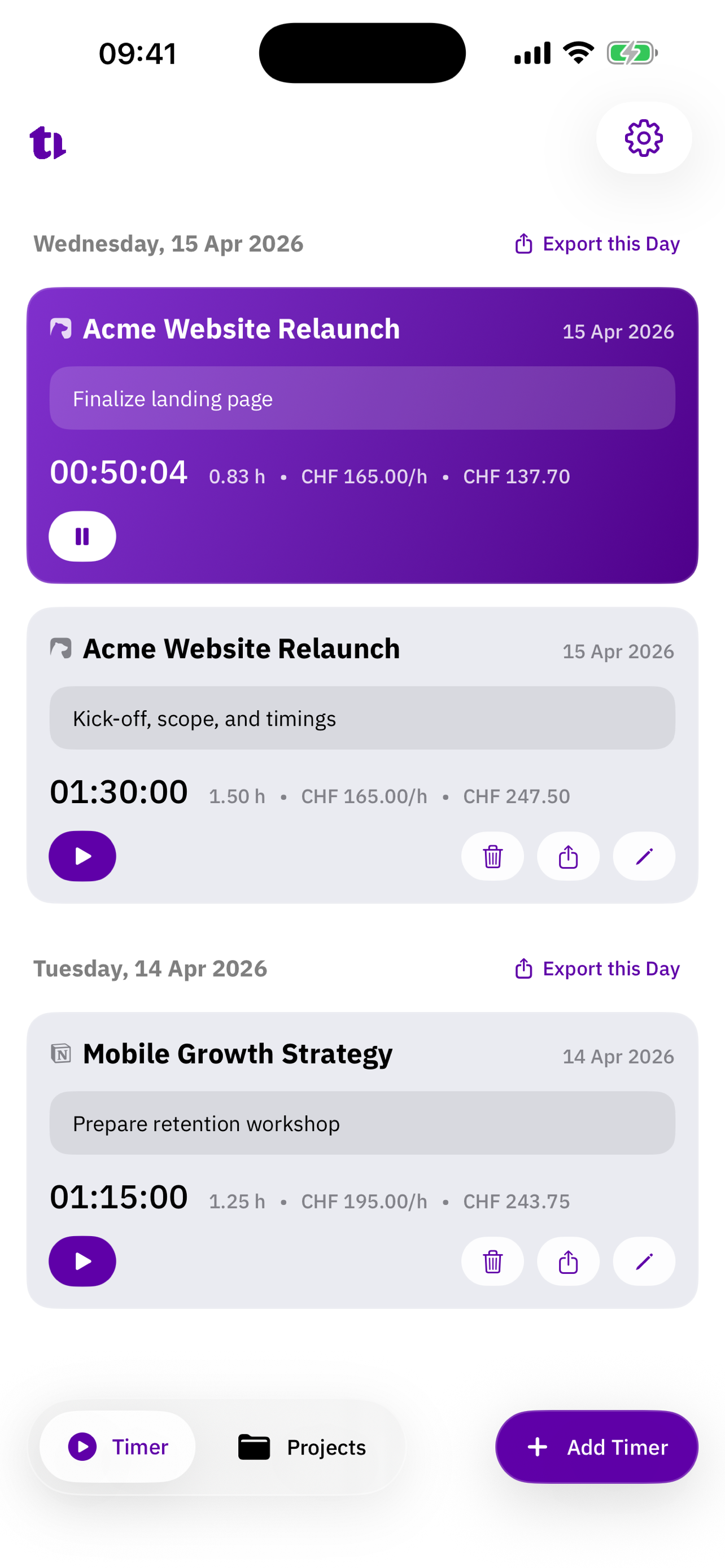
The running timer takes the top spot, stopped entries sit below – with duration, decimal hours, and amount in plain view.
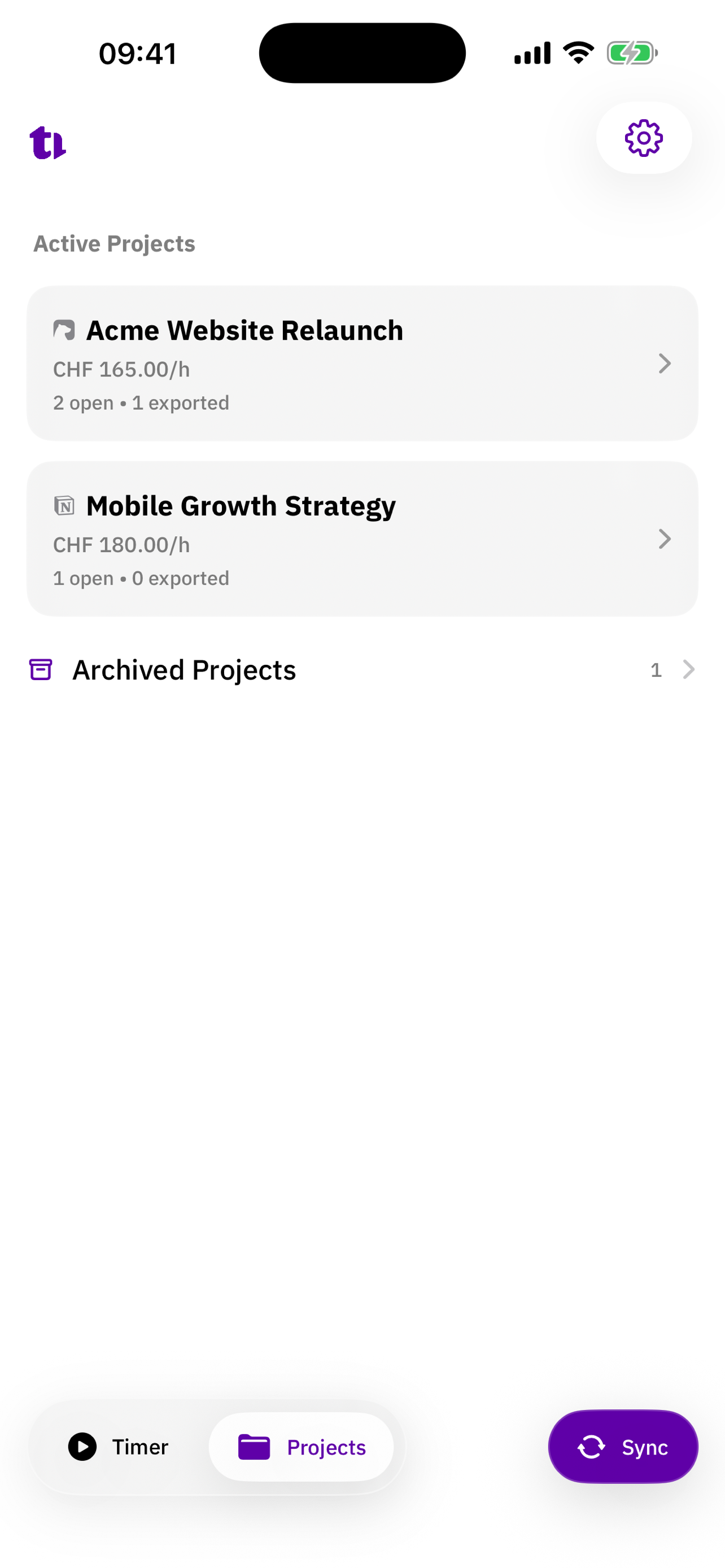
Active projects, hourly rate, and the count of open vs. exported timers at a glance. Archived projects live in a separate view.
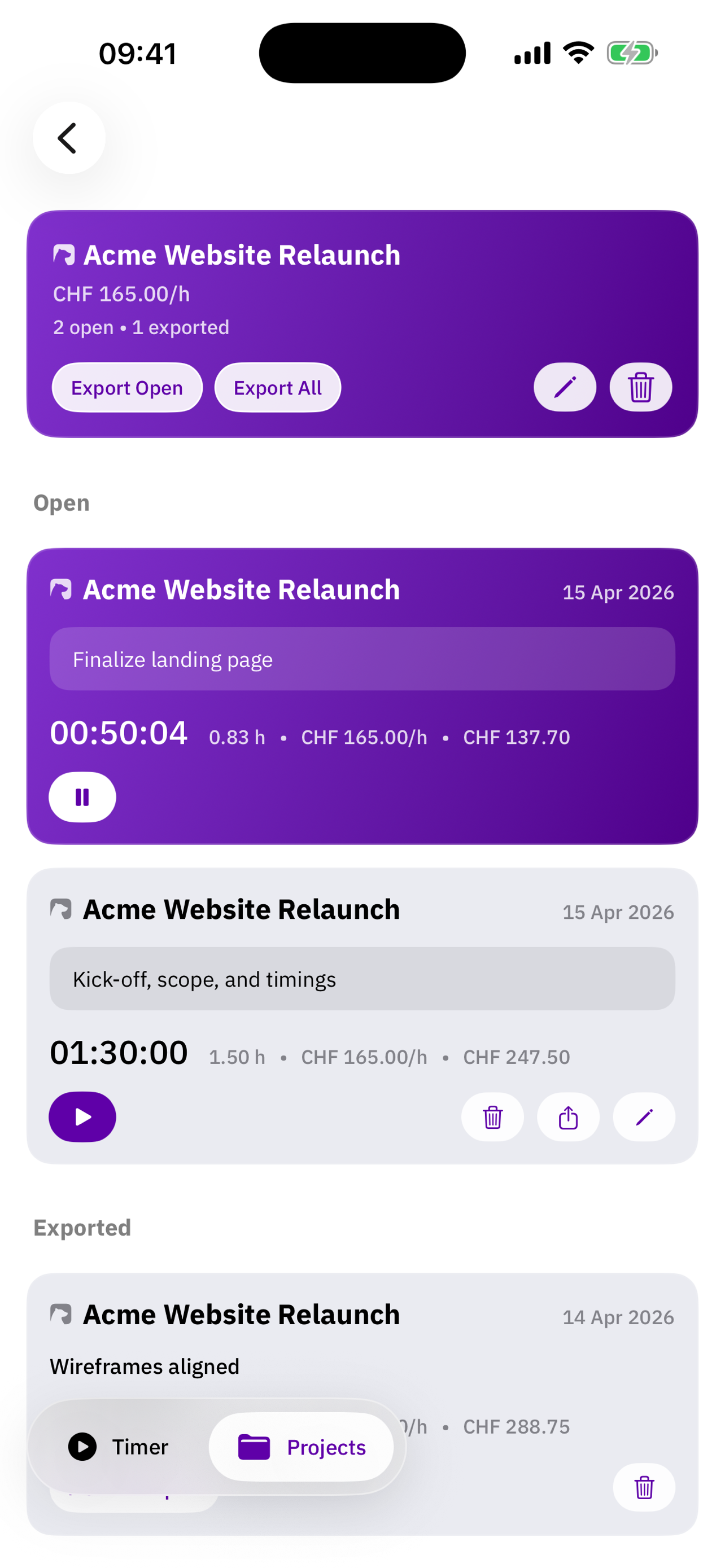
Open and exported entries cleanly separated.
Export Open or Export All pushes
the report back to the project source.
TrackDown doesn't change your workflow – it slots into it. Projects stay where you maintain them, TrackDown takes care of time and export.
Connect TrackDown to Bear, Notion, or Obsidian. Multiple sources can run side by side.
Hit Sync and TrackDown pulls matching projects
from your tools – the archived state follows the source.
Start timers per project, add notes, and adjust duration or hourly rate whenever needed.
One entry, a full day, or an entire project. Clean table with date, duration, hourly rate, amount, and notes.
TrackDown reads projects from Bear, Notion, or Obsidian and writes reports back in the same shape.
Projects are found via a configurable hashtag (e.g.
#project). Exports are written as a Markdown
table directly into the linked Bear note.
Projects come from a selected data source. TrackDown creates or updates a native Notion table on the linked page.
Projects from your vault appear in TrackDown. Time entries are stored back in the corresponding project notes in the familiar format.
iOS 18+, iPadOS 18+, and macOS via Mac Catalyst.
TrackDown is on the App Store. Got questions or ran into an issue? The support page has the answers – and feedback is always welcome.